
Your GitHub profile is a portfolio people can run.
Open-source contribution means improving software anyone can use: fixing bugs, writing documentation, adding features to public projects. Your GitHub profile is where that work and your own projects are seen by recruiters, maintainers and teammates. Set the profile up properly, pin your best work, and make your first contributions small and real. I built my profile README as a designed page for exactly this reason.
- Contribution
- Code, docs, tests, issues, reviews on public projects
- Start with
- A project you use; a small, real fix
- Profile
- README, pinned repos, clean names, a link in your résumé
- Shows
- Collaboration, code quality, consistency

- 200+students mentored
- 20+campus sessions
- 5production AI apps
Questions students ask
The open-source and GitHub profile questions searched most, answered plainly.
What is open source contribution?
Open-source software is published with a licence that lets anyone use, study, modify and redistribute it, and contribution is any improvement you give back: fixing a bug, adding a feature, writing or correcting documentation, adding tests, reporting a reproducible issue, reviewing someone else's change, translating, or maintaining packages. Contributions usually arrive as pull requests on GitHub or a similar platform, reviewed and merged by the project's maintainers. The AI ecosystem runs on open source, from PyTorch and Transformers to Ollama and the hundreds of tools around them, so contributing is both a way to learn and a way to be seen by the people who build the field.
How to start open source contribution
- Pick a project you already use and understand, ideally one you have hit a problem with.
- Read its contributing guide and code of conduct; set up the development environment and run the tests.
- Find a small, well-defined task: issues labelled good first issue, a documentation gap you noticed, a failing edge case you can reproduce.
- Comment on the issue to say you are taking it; ask questions if the scope is unclear.
- Make the change in a branch with a clear commit, add or update tests, and open a pull request that explains what and why, with a link to the issue.
- Respond to review promptly and politely; revise; celebrate the merge. Then do the next one.
How to do open source contribution in GitHub
Fork the repository to your account, clone your fork, add the original as an upstream remote, and create a branch for your change. Make the change, run the project's tests and formatters, commit with a descriptive message, and push the branch to your fork. Open a pull request from your branch to the project's main branch, fill in the template, and link the issue. Maintainers review in the pull request; you push further commits to the same branch to address comments. Keep your fork's main branch synced with upstream so later contributions start from current code. A first pull request can be a one-line documentation fix; the mechanics are the same for a feature.
What are open source contributions?
Anything that improves a public project and is accepted by its maintainers. Code is the obvious kind, but documentation, examples, tutorials, bug reports with minimal reproductions, test cases, translations, triage of issues, answering questions in discussions, design work and reviewing pull requests all count and are often more welcome than another feature. For AI projects specifically, valuable contributions include reproducing a reported problem with a model, adding an evaluation case, fixing a broken notebook, improving an integration with a provider, and documenting a setup that took you hours to get right. Maintainers remember people who make their lives easier.
What is GitHub profile?
Your GitHub profile is the public page at github.com followed by your username: your name, photo, bio, location and links, your pinned repositories, your contribution activity, and, if you create a repository with the same name as your username containing a README, a custom introduction at the top of the page. For developers it functions as a portfolio and a reference: recruiters look at it, maintainers check it before reviewing your pull request, and teammates read it. A tidy profile with a short README, a few pinned projects with good descriptions, and steady activity says more than a long résumé.
What is GitHub profile README?
A special repository named exactly as your username, with a README file, renders at the top of your profile page. It is yours to design: who you are, what you build, your best projects with links, how to reach you, and optionally badges, statistics and images. Keep it short and specific; a sentence on your focus and three linked projects beat a wall of badges. I treat mine as a designed page: a few figures that render in light and dark mode and a daily workflow that refreshes the statistics, generated from a script, because the profile is often the first thing a person sees before deciding whether to read further.
How to get GitHub profile link
Your profile link is github.com followed by a slash and your username, for example the address you see in the browser when you click your avatar and choose Your profile. Copy it from the address bar, or from the share option on the profile page. Put it in your résumé header, your LinkedIn, your portfolio site and your email signature. If your username is awkward, you can change it in settings; GitHub redirects the old address for a time, but update your links everywhere afterwards. Make sure the profile you link to is the one with your real work pinned, not an empty account.
How to change GitHub profile picture
Open settings from your avatar menu, go to the public profile section, and upload a new picture; a clear photo of your face or a consistent personal mark works best, since the same image appears on every commit, pull request and comment you make. Use the same picture across GitHub, LinkedIn and your portfolio so people recognise you from one to the other. While you are there, fill in the name, bio (one line on what you build), location at the level you are comfortable with, your website and your social links; an empty profile beside good repositories is a missed introduction.
Can I change GitHub profile name?
Yes, both parts. The display name (your full name shown on the profile) changes freely in the public profile settings. The username, which forms your profile address and appears in every repository path, can also be changed in account settings; GitHub redirects the old username for repositories and profile for a period, but links in other people's documents, your résumé and package registries will not update themselves, so change it early if you are going to, and update everything you control. Choose a username close to your real name; it is easier for recruiters and maintainers to connect to you.
What is GitHub profile URL?
The URL is the full web address of your profile: the GitHub domain, a slash, and your username. Repository addresses extend it with another slash and the repository name, which is why the username matters: it appears in every link to your work. When someone asks for your GitHub, this address is what they want, and it should lead to a profile with a README, pinned projects that run, descriptions on every repository, and recent activity. For AI roles, pin the projects that show retrieval, documents, vision or agents with a live demo link in the description; that is what a reviewer clicks first.
A profile that works in an hour
What reviewers actually look at.
- 01
Settings
Real name, clear photo, one-line bio, website and LinkedIn links.
- 02
README
What you build, three linked projects, how to reach you. Short.
- 03
Pin and describe
Pin the best projects; each repository gets a description, a README with a demo link and a way to run it.
- 04
First contribution
A small, real fix to a project you use; link the merged pull request in your README.
With students
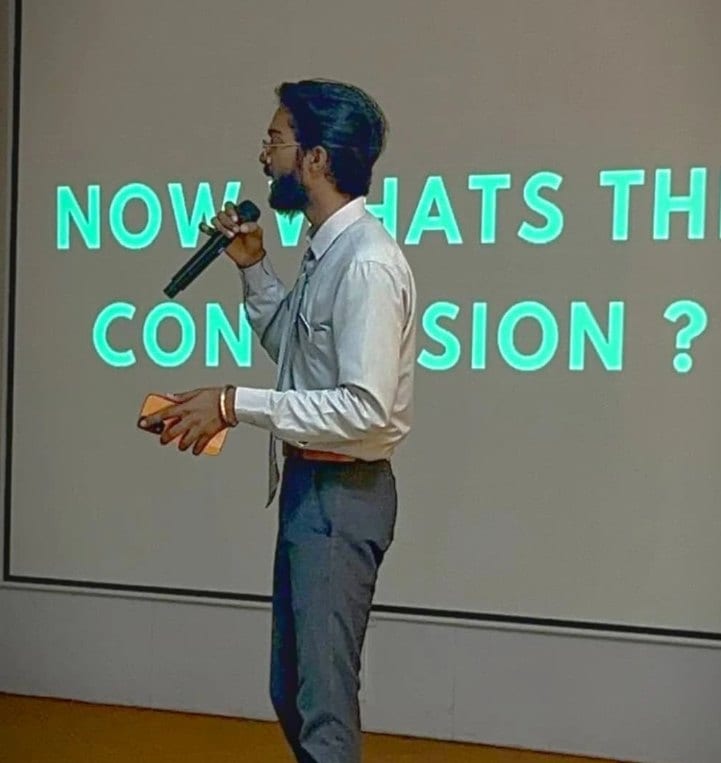
Sessions where this advice gets given in person.

Read next
Portfolio, visibility and community.
A GitHub that recruiters open and stay on?
I review student profiles and projects and show what to pin, what to write and where to contribute first.